
Layers and Tiles
Next we'll be adding our background. This includes the ground as well as the walls.
We want our background to always be behind the player (...else it'll cover the player), so we'll be making use of Layers.
Layers
Click on the Layers button to open up the layers panel. We can use this area to change the background.
As we are setting this game inside an underground lair, it would be good to make the background dark, even black:
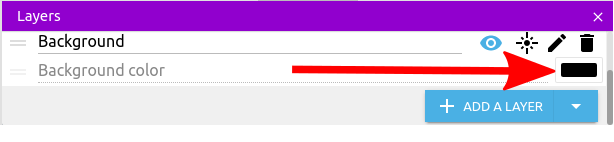
You can see that we currently have only a single layer, the default Base layer.
Click Add a Layer to add a new layer, rename it to Background, and move it below the Base Layer.

Now anything that's in the Background layer will appear behind all the objects in the Base Layer.
While we are at layers, we should also add a GUI layer for any buttons or head-up (HUD) style displays - like Health, Score, Items, mini-map and so forth. This layer should be place above the Base layer.
If you have the optional touch buttons for movemenent, select each of the buttons on the scene and change their layer to GUI.
But make sure the Player object remains in the Base Layer. You see the layer of each object in the Properties panel on the left:
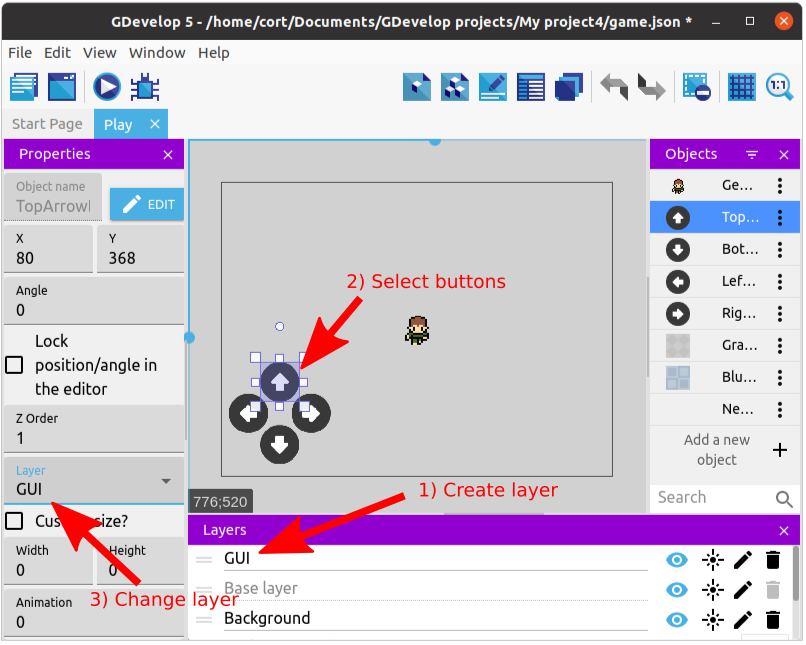
This ensures that the buttons will always appear over all other objects in the scene.
Tile Sprite
I'll be using Gray Background for the floor and Blue Background for the walls. You can find much better floor and walls images online (eg. OpenGameArt), but since I'll like to keep this tutorial accessible to everyone, I'll just have to make do with what we have in the Asset Store.
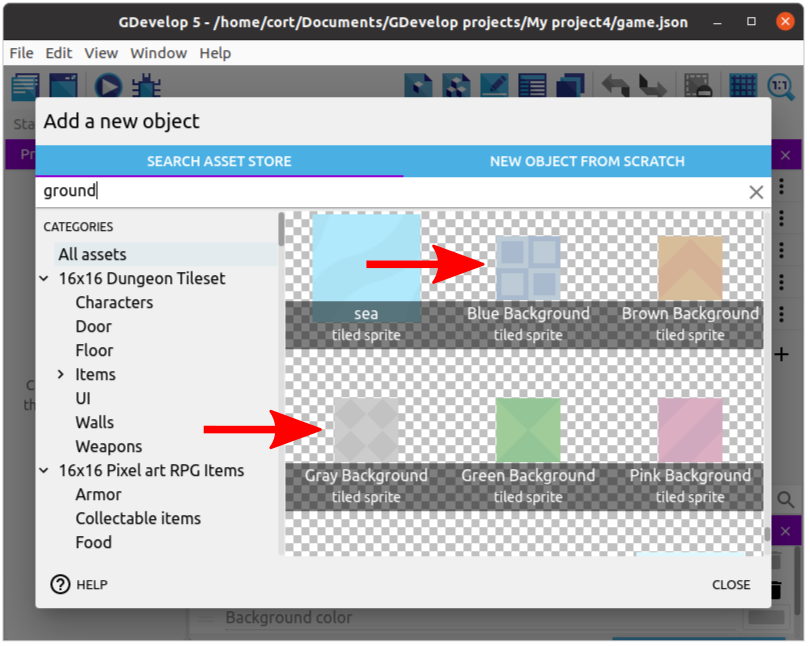
To find these I typed background into the search box, I clicked on the filter panel and scrolled down to check the Tiled Sprite filter.
You will need to click on Show next assets after scrolling down and not finding the assets we are looking for. It's like a Next Page button. Then scroll to find the Blue and Gray backround tiles next to each other as shown above.
Go ahead and add both the Gray Background and the Blue Background to the scene.
Tiled vs. Normal Object
You can see it indicated below the asset name that these are tiled sprite. The differences between a normal sprite and a tiled sprite are...
| Normal Sprite | Tiled Sprite |
|---|---|
| Support animation | No animation |
| Resizing causes the sprite to be stretched | Resizing causes the sprite to be repeated |
This images demonstrates what happens when you try to resize a normal sprite and a tiled sprite.

Grids
To make it easier for us to position the tiled sprites properly, we can make use of the Grid feature. Click on the Grid button and select Show Grid.

By default, the grid size is 32 by 32 pixels, which is good for us. If you need a different grid size, you can set it using Setup grid.