
Getting Started
As before, start by opening up GDevelop. If you're using the web-based editor, use this link editor.gdevelop.io.
Create a new game with Empty Project, and select Custom size again - 800 x 600. Name the project and click Create new game.
You should be greeted with the scene editor...

Using the Game management menu on the top left (burger), you can rename the initial Untitled scene to Play. As before, there's nothing special about the scene name, so use whatever you want.
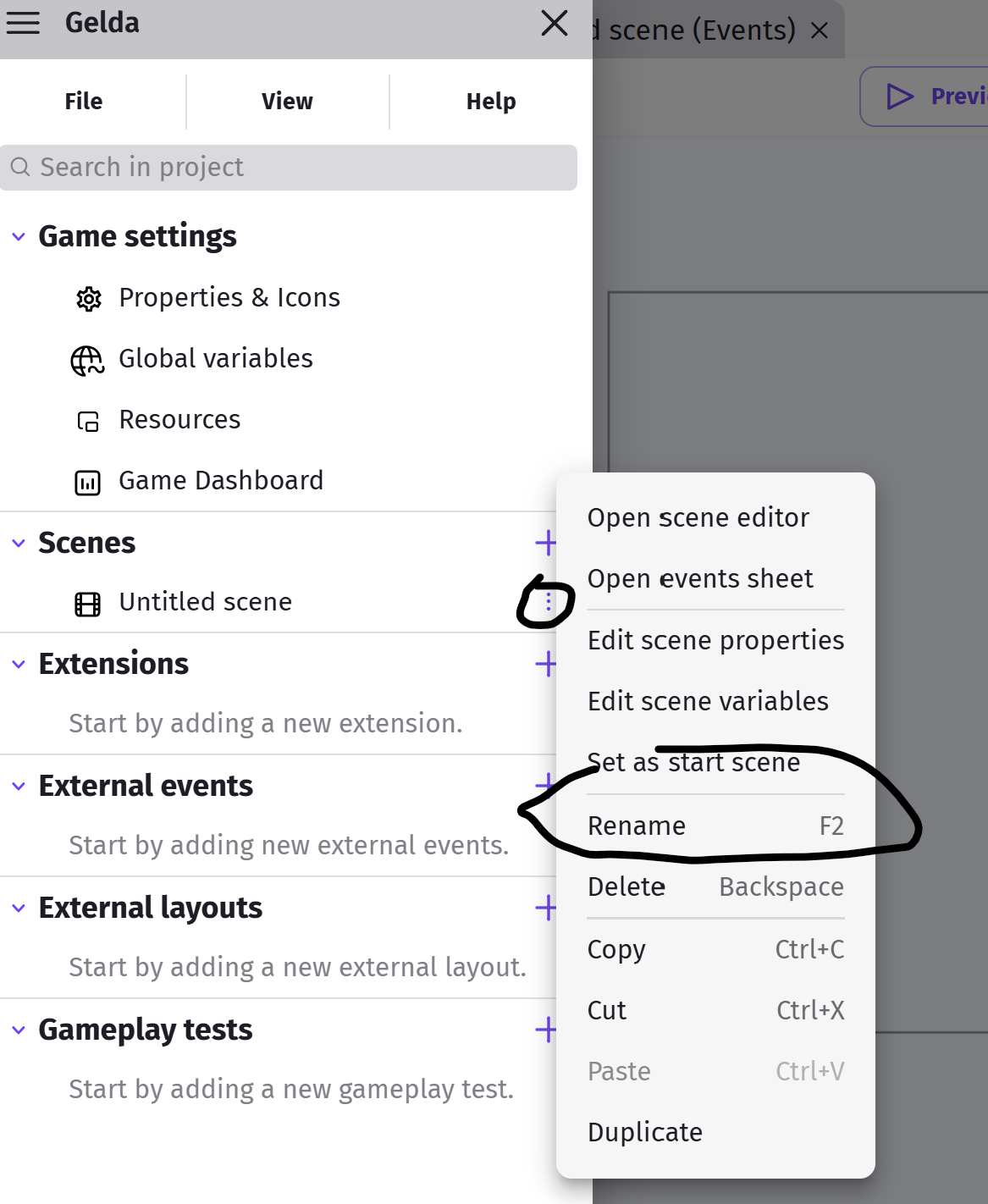
If you lose the Scene Editor and Events tabs after renaming just click on the new Scene name in the Game management menu and they will reappear.
Project Properties
For this game, we'll be aiming for a retro pixel art aesthetics, to achieve that, we'll need to change a few settings. Open up the Project Properties window...
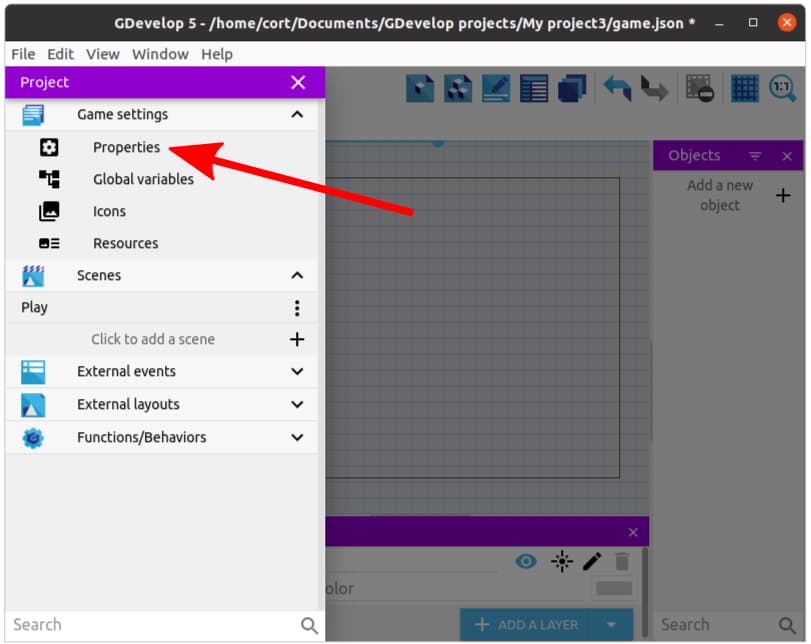
Scroll down to Resolution & rendering area and set...
- Game resolution resize mode to No changes to the game size
- Scale mode to Nearest
- Round pixels when rendering to Checked
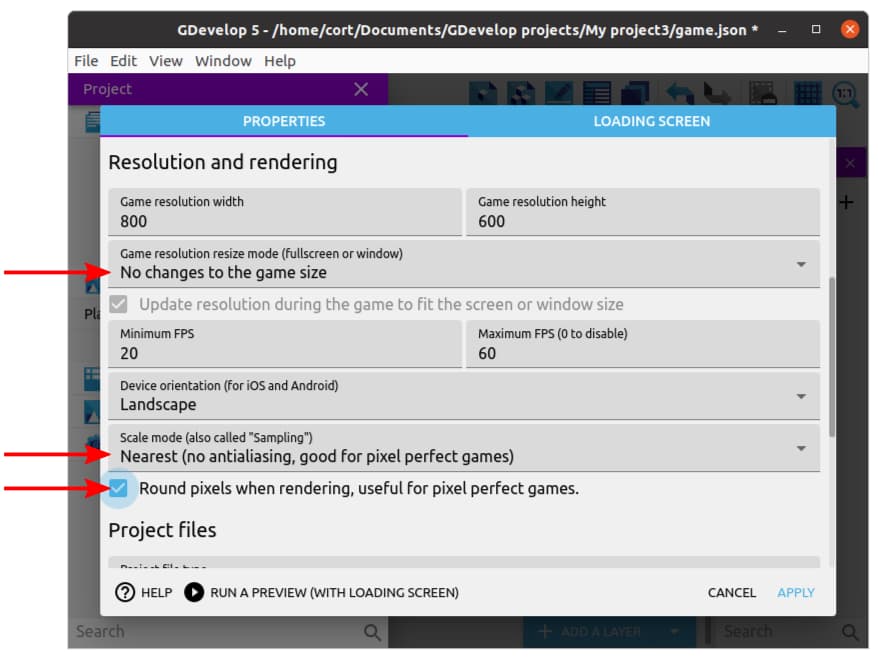
These settings help to preserve the jagged, pixelated look of the image. Without them, GDevelop will smooth jagged edges, making them look blurry.
Scenes
We'll start with just one scene for now, but eventually, we'll have 3 scenes in total:
Play Scene
This is where we will have the main gameplay. It will comprise of a large map with...
- Walls and other obstacles
- Two Non-Player Characters (NPC)
- A few enemies
- An item to pickup
- Player character
Start Scene
Just as in Dodge the Creep, we'll have a start screen for the game. Basically just a title and a clickable button to start the game.
Game Over Scene
We'll use this scene when the player loses. It'll just display a "game over" message and provide a button to restart the game.