
Scene Editor
You should now be in the scene editor...
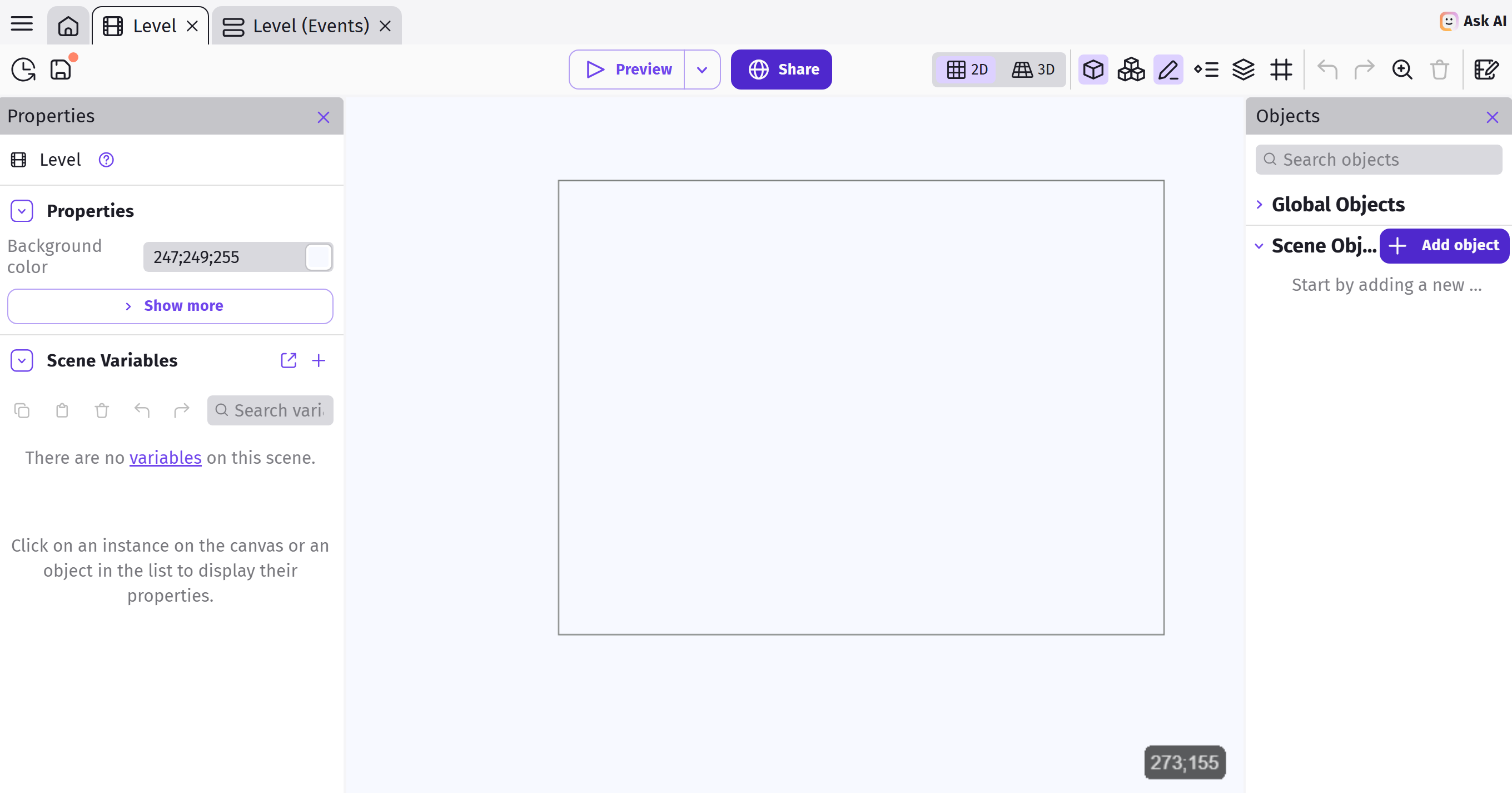
Take a look around, and take note of the following...
Scene Area (in the middle)
This represents your game screen. Right now it's empty, but later we'll drag some objects into it.
Objects Panel (on the right)
In GDevelop, everything on screen is an object, including players, enemies, and text. The object panel will list all of the objects in this scene.
IMPORTANT Objects do not automatically appear on the scene. To do that, you need to create an Instance of the object.
Global vs. Scene Objects
Note you can create new objects as relative to the Global or Scene part of the environment. For now we will create Scene Objects, but objects like Player should probably be Global as the player might be moving from scene (level) to scene.
You can move Scene Objects to Global, so it's not a big issue at this point.
Instance properties (on the left)
A object can have many instances in a scene, and you can configure each of these instances by changing their properties here (eg. size, position).
Events Tab
The events tab is where we define the controls, gameplay, and rules of the game.
Other Panels
There are a few other panels that are hidden by default (eg. layers). We won't be using them for now, but you can take a peek at them by clicking on their icons in the toolbar. If you accidentally close any of the default panels, you can also reopen them the same way.