Getting Started
Go ahead and open up GDevelop. If you're using the web-based editor, use this link https://editor.gdevelop.io/.
Sign Up or Sign In
Please create a free account or use one of the classroom accounts we have provided. You will eventually need to confirm your email so make sure the email you provide is reachable on your device.
Create
Once you've logged into GDevelop, you can navigate to the Create tab - see menu on left hand:
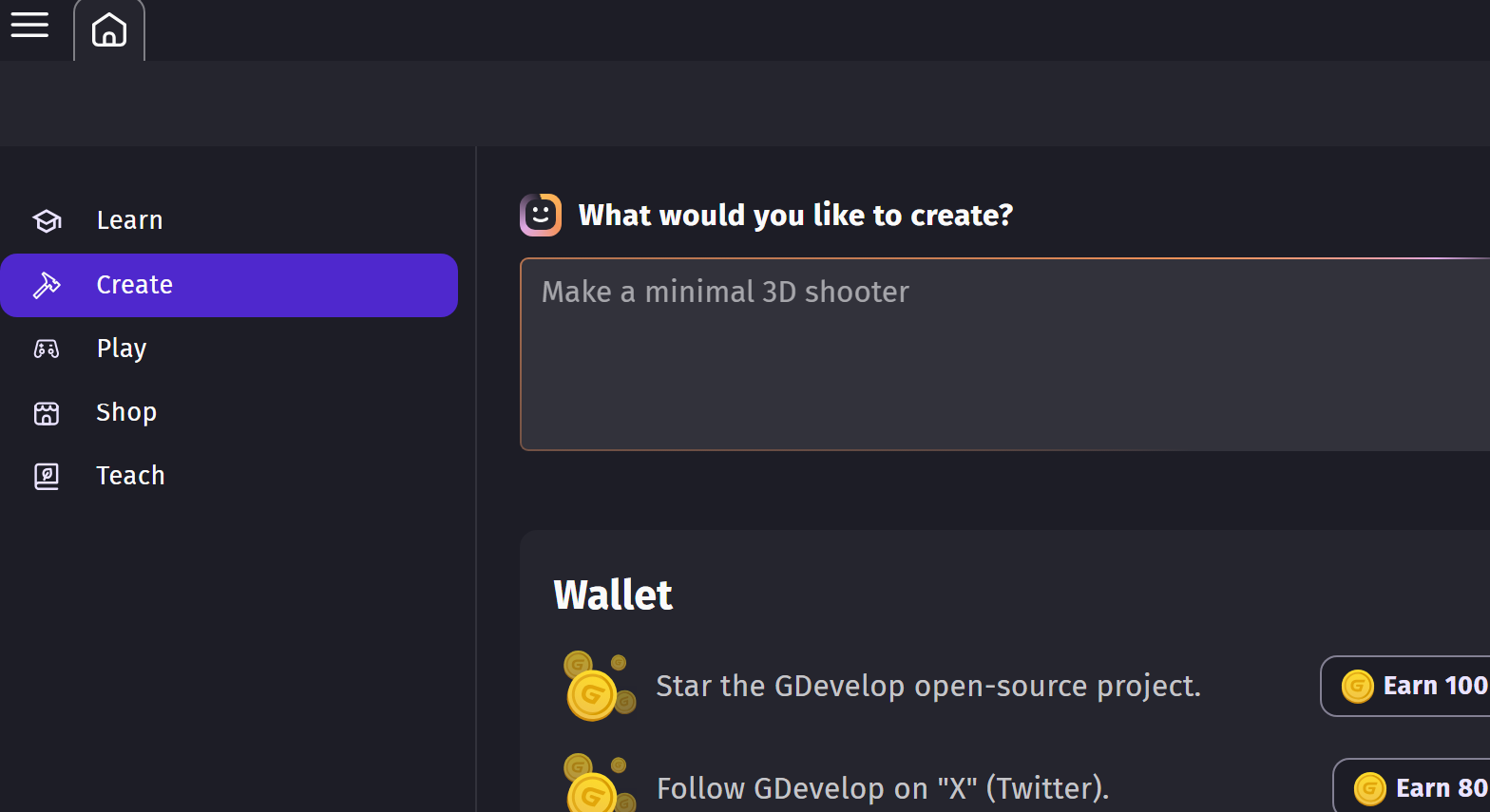
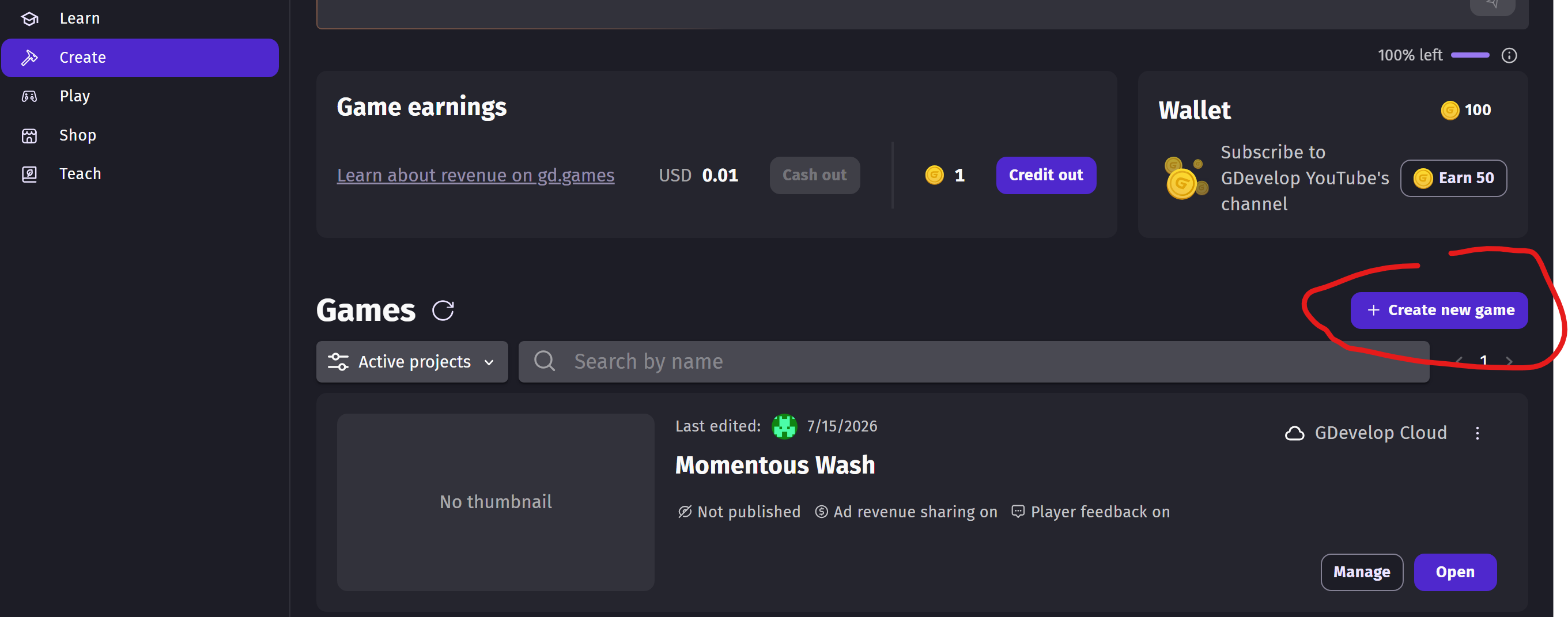
Click on CREATE A NEW PROJECT...
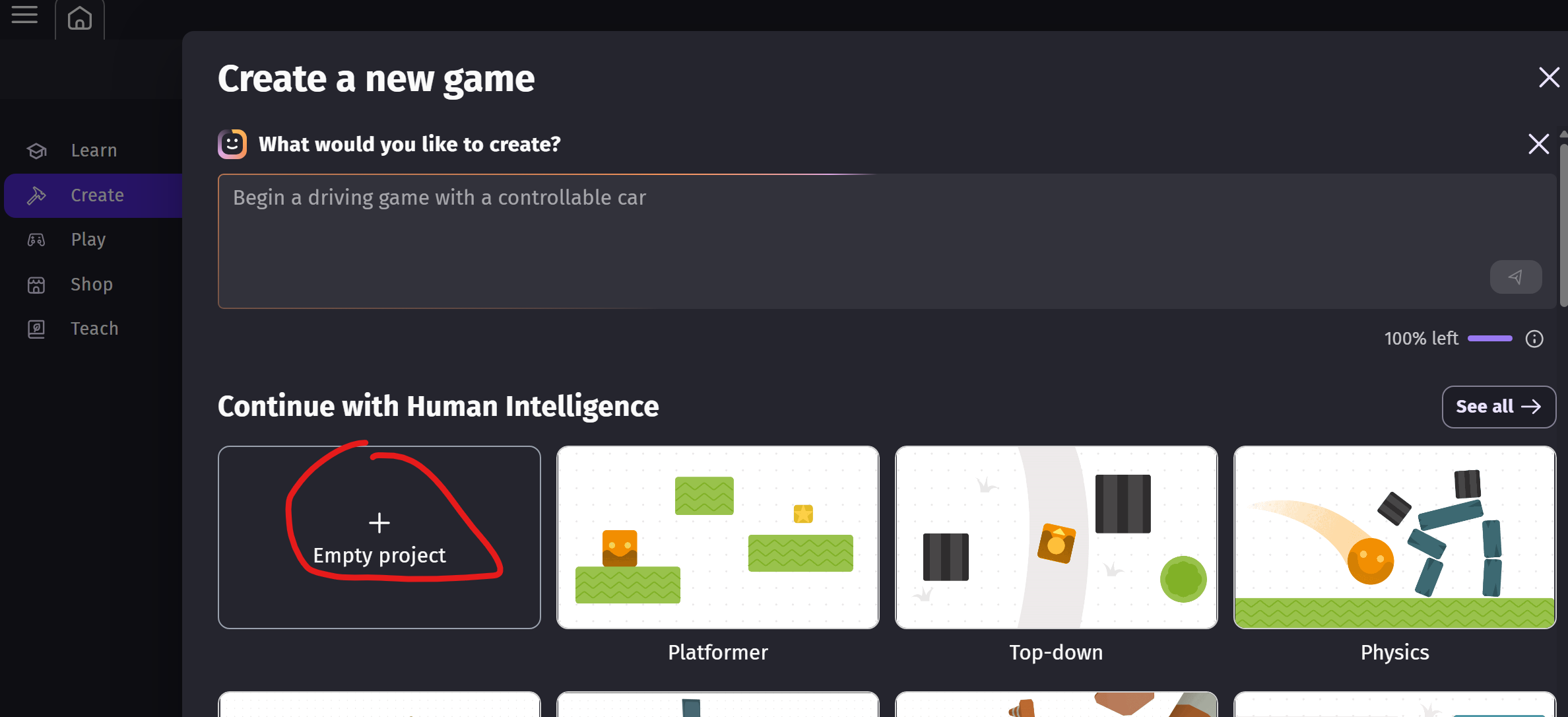
Select Empty Project...
Give your project a name, and select Desktop/Landscape - we find this to be the most common size and orientation we work with.
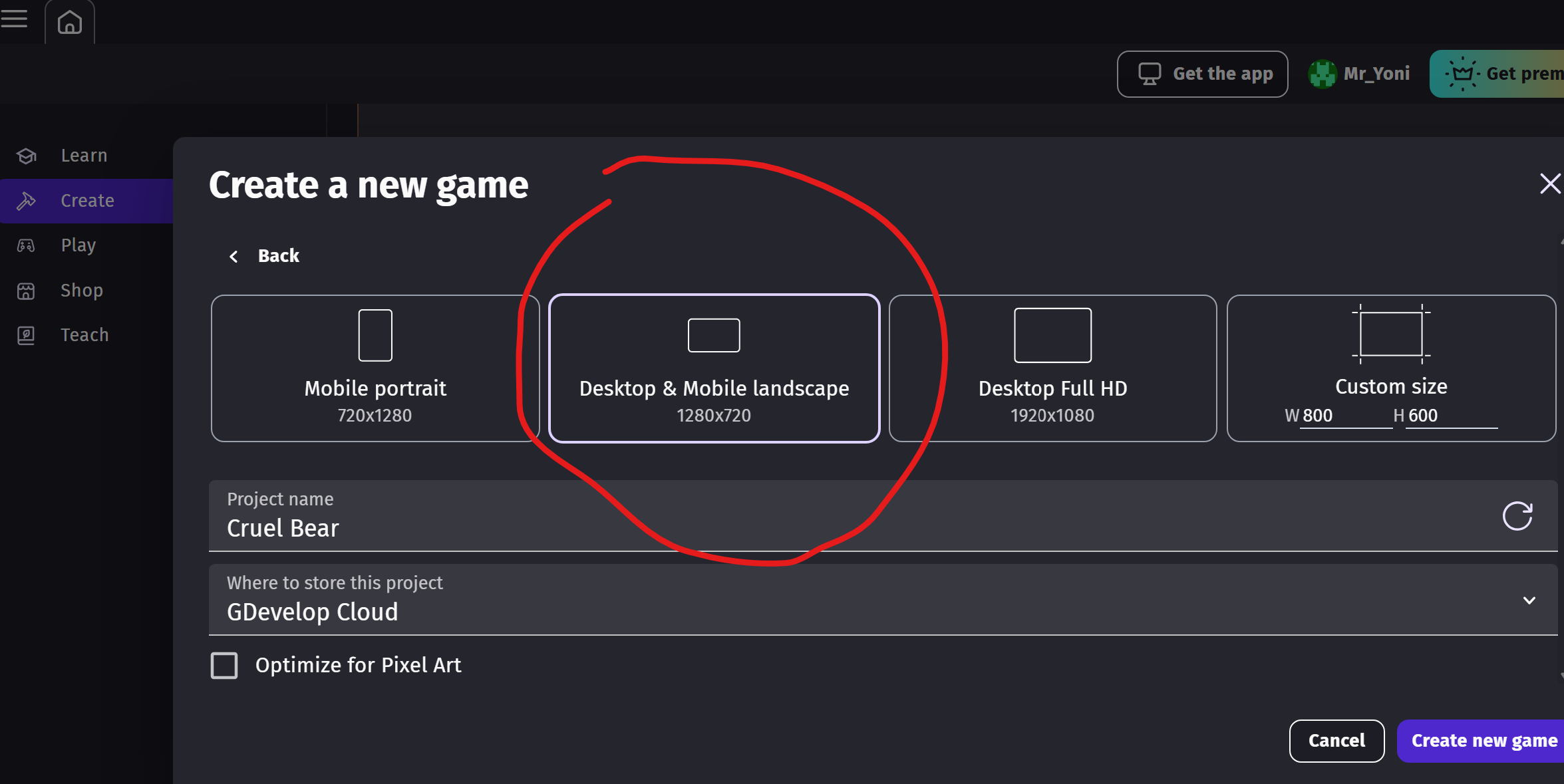
You now have a completely empty project.
Click on the Project Menu burger icon...
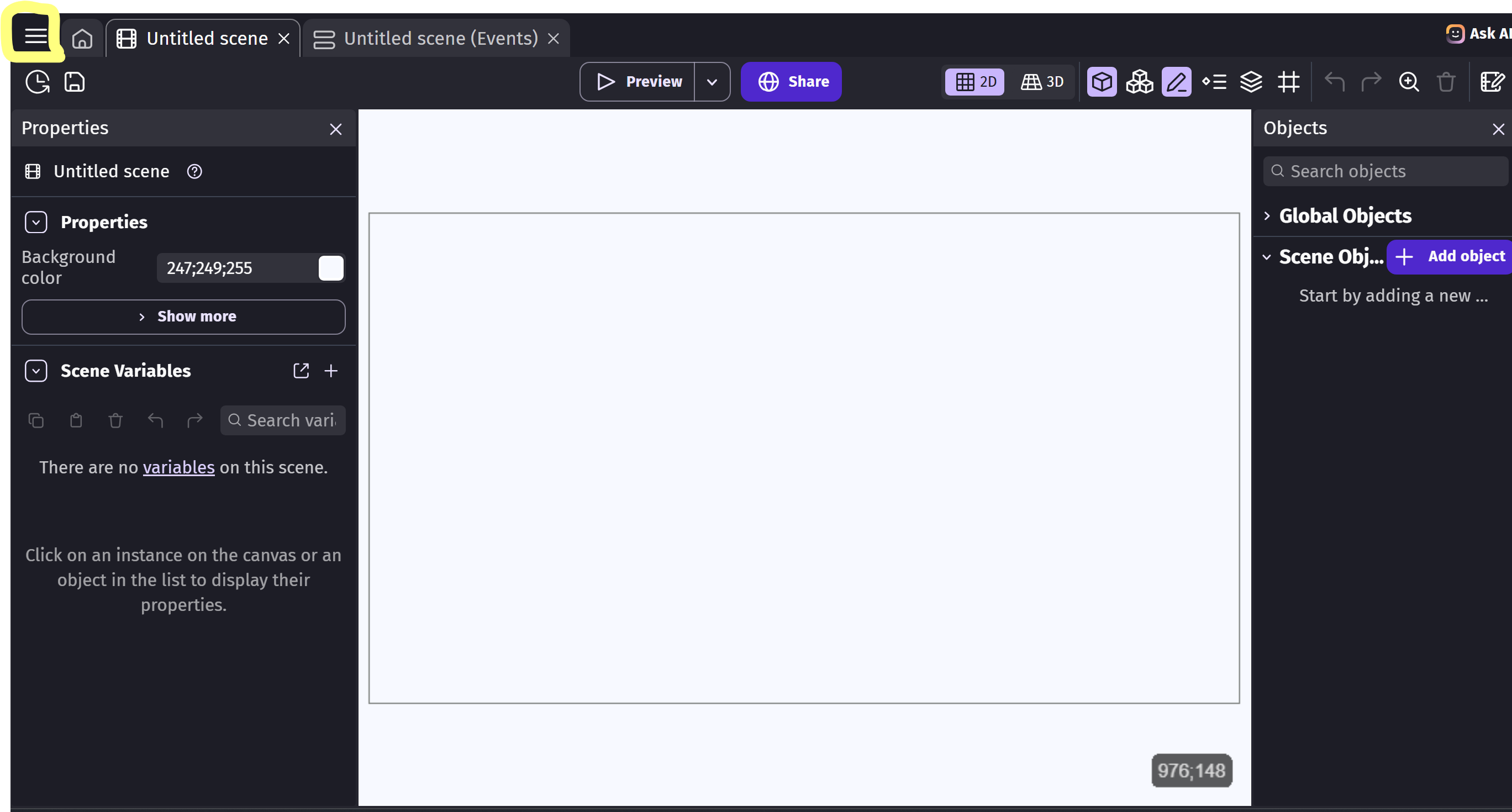
We'll need to set a property for the game.
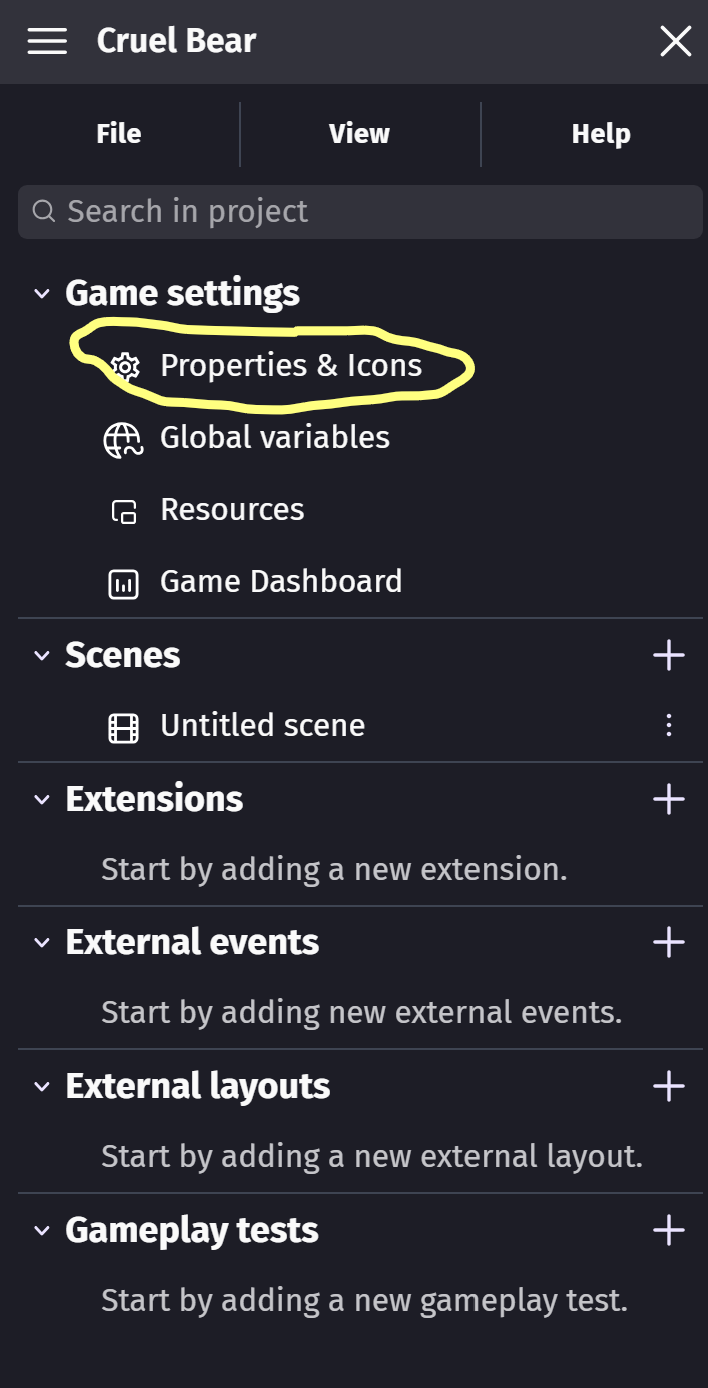
Click Properties & Icons under Game settings menu...
...and set the Width: 800 and the Height: 600, and change Game resolution resize mode to No changes to the game size. This ensures that the game window remains the same size regardless of your actual screen size.
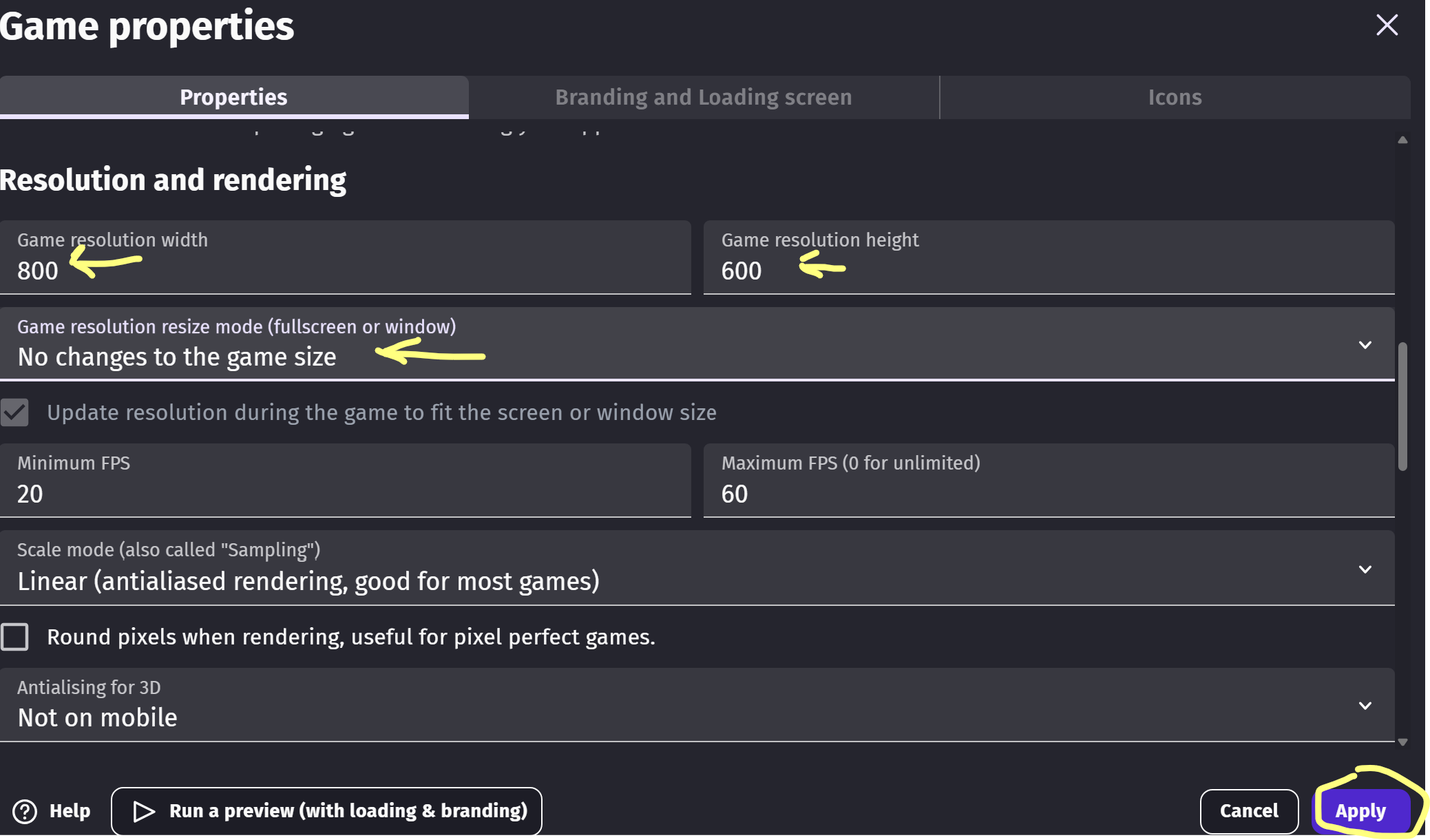
Don't forget to click Apply!
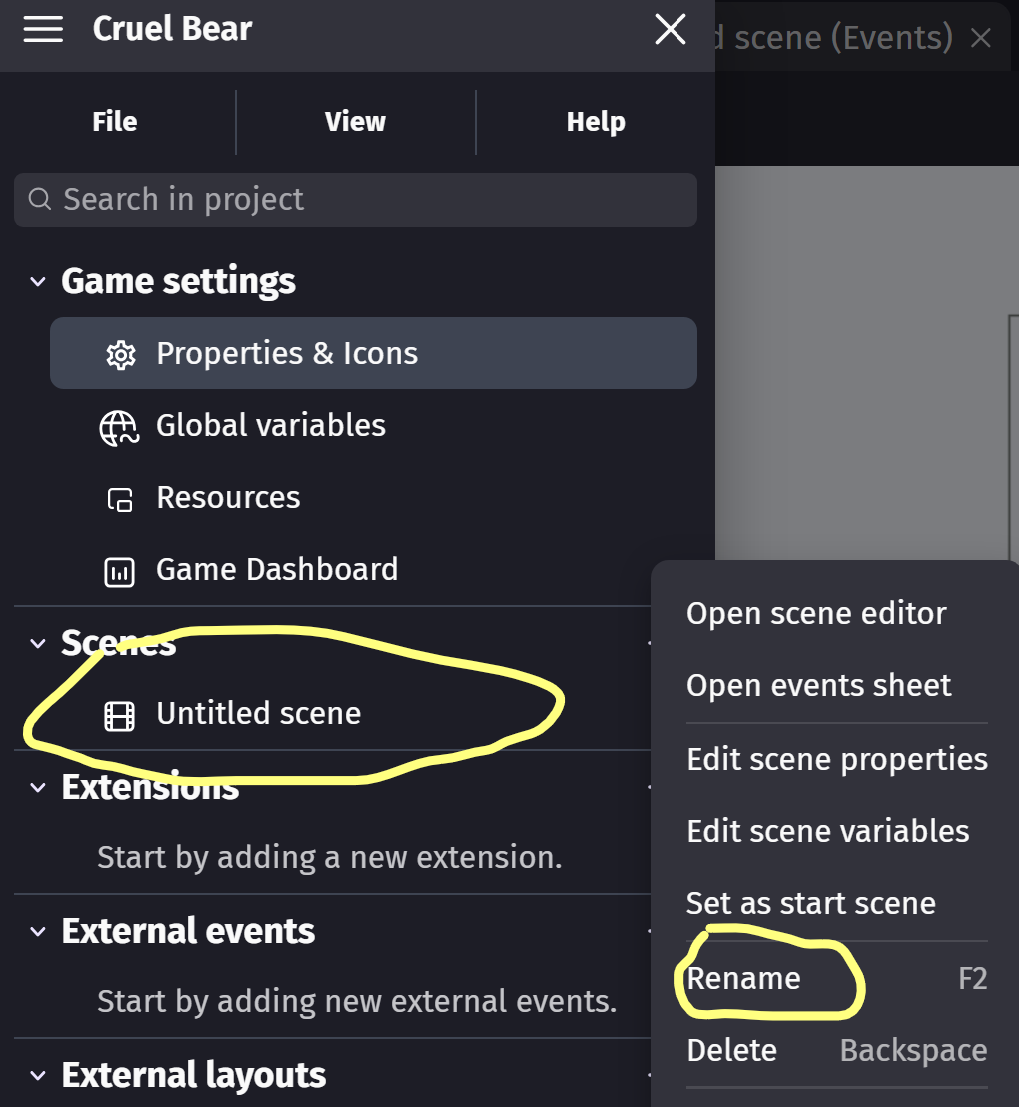
One last thing we can do on the game manager menu is to rename the new untitled scene it starts out with.
Click the 3 dots on the right of the Untitled Scene in the Game Menu.
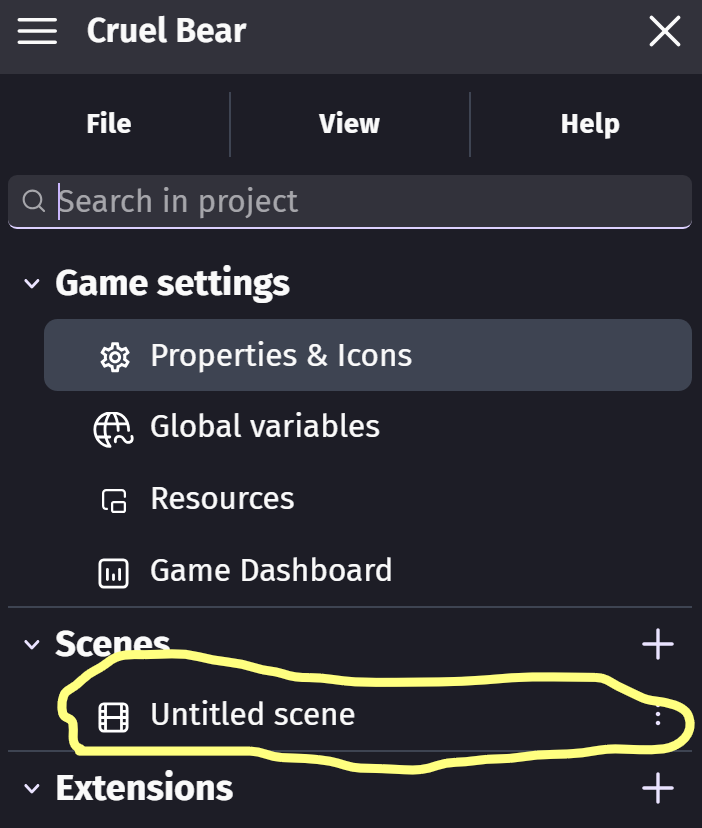
Then rename it to something like "Level".
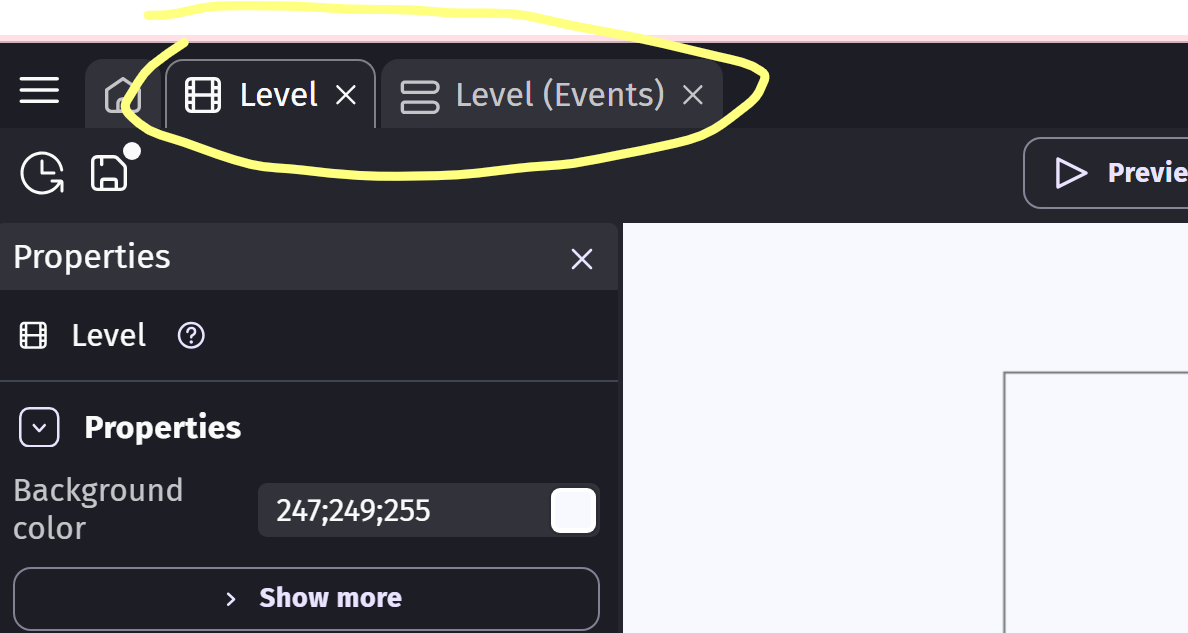
Last thing click on Level scene to open the relevant game design and game events tabs. You can click away from the menu to close it and make sure the tabs are there: